June 09, 2026, 11:50:50 PM
| Chapter 4: Editing Cursors | ||||
| About Cursor Resources | ||||
 |
When playing SCI games, you'll notice the mouse cursors. The arrow for pointing, the hand when something is loading, and so forth. These are the cursor resources, and you can edit them with the Cursor Editor. | |||
| Getting Started | ||||
 |
In the Game Explorer, there's a list of the game's resources. Click on the cursor folder and the list of cursor resources will appear on the right, along with a preview of the first cursor. |
|||
 |
Double click the first cursor resource (named "Arrow") and the cursor editor will open up. | |||
| The Cursor Editor | ||||
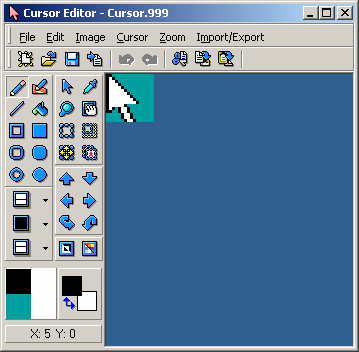
The Cursor Editor will load up with the cursor you selected. You can edit the cursor to your liking with the drawing tools. These operate identical to the view editor's tools. Next you can select the "hot spot". The hot spot is the single pixel in the cursor that fixes the location of the user's click. In EGA SCI games, you have two choices. You can select the hot spot to be on the top left corner, or the center. | ||||
 |
Naturally, this would have a "corner (0,0)" hot spot. | |||
 |
And this would have a "center (8,8)" hot spot. | |||
 |
Click on the "Cursor" menu, then select "Hot Spot", then the desired hot spot. | |||
 |
Once done editing the cursor, you can save it. Click the save button, and the "Add Resource" window will pop up. As discussed in chapter 3, you just need to click "OK".Now that the you've finished editing the cursor and saved it, you can close the Cursor Editor. |
|||
 |
Back in the Game Explorer, you will see that the cursor has been updated with your changes. Click on the Run button in the main window's toolbar to play the game with your updated cursor. Right away you will see the new cursor in all it's glory! |
|||
| Congratulations! You now know how to edit cursor resources. | ||||
| ||||